Real Devices vs Emulators
Real devices and emulators solve different testing problems: virtual environments maximize speed and configuration coverage, while physical hardware validates the conditions users and interface-driven agents actually encounter.
For mobile app testing, the strongest approach is not choosing one environment over the other. It is building a QA testing strategy that starts with fast, repeatable emulator testing and adds real device testing wherever physical hardware, system behavior, or user context can change the result.
This distinction becomes even more important for AI agents that work through visible interfaces. A passing task in a controlled virtual setup does not automatically prove that the same agent can handle a keyboard covering a button, a permission dialog, an orientation change, a notification, or a temporarily unavailable network on a physical device.
Choose the Environment Based on Test Risk
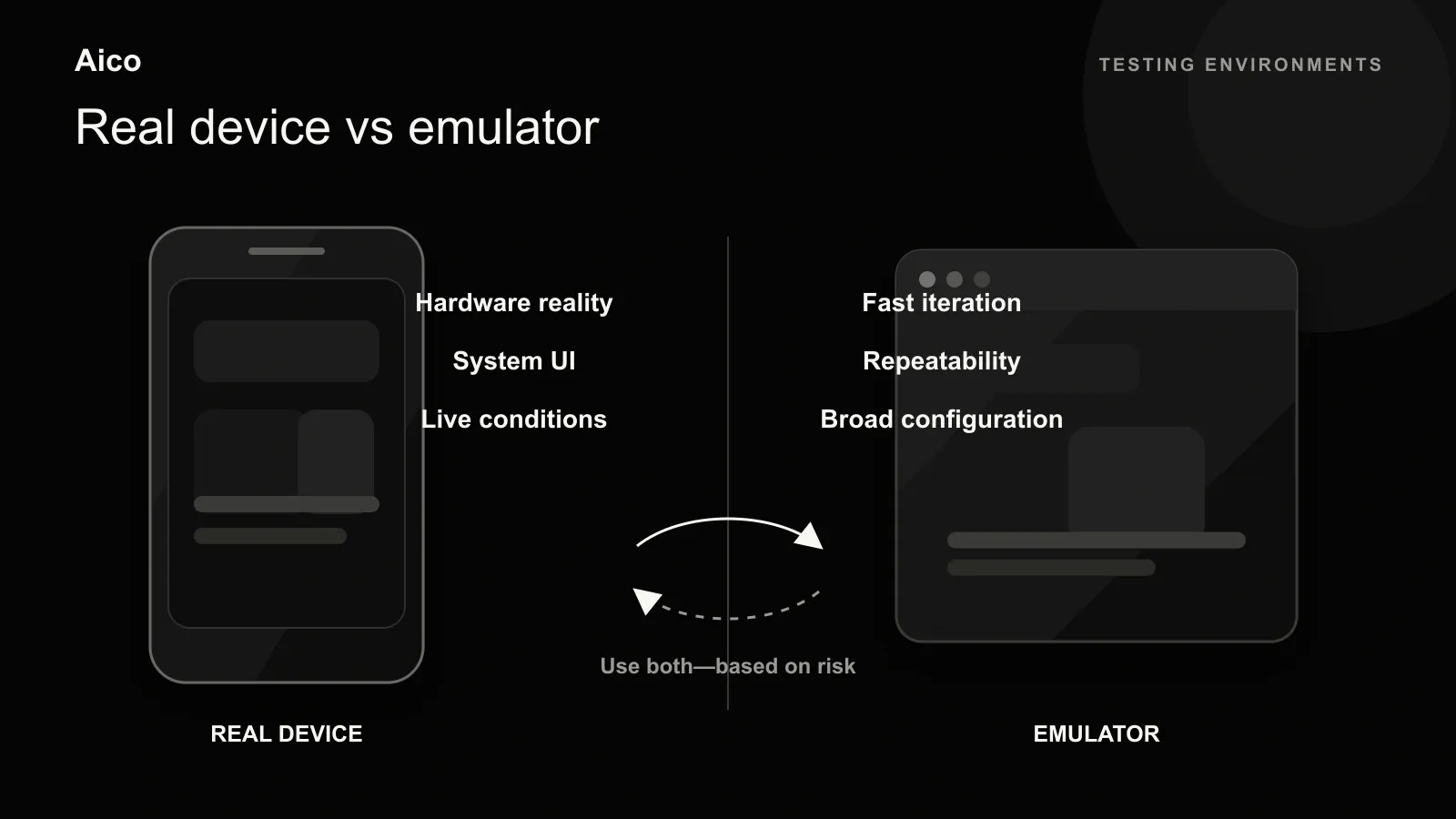
The question is not whether real devices or emulators are better. The useful question is: what can cause this workflow to fail?
An Android Emulator can run configurable Android Virtual Devices across API levels, screen sizes, orientations, densities, and locales without requiring a team to own every physical device. That makes it highly useful for fast development loops and repeatable automated testing. Android instrumented tests can run on either physical or emulated devices, allowing teams to reuse much of their test suite across environments.
Real devices provide a different kind of evidence. They run on actual displays, radios, operating systems, input hardware, power-management systems, and manufacturer-specific configurations. They are essential when the behavior under test depends on those real conditions.
| Test objective | Start with | Add physical-device validation when |
|---|---|---|
| Business logic and API mapping | Unit tests and mocks | The result changes visible UI or device state |
| Navigation and routine UI regression | Emulator or simulator | The journey is release-critical |
| Layout across OS and screen profiles | Emulator or simulator | Visual quality must be confirmed on representative hardware |
| Bluetooth, NFC, USB, or attached audio | Emulator for surrounding logic | Always for the hardware-dependent path |
| Notifications, permissions, and system UI | Emulator or simulator where practical | Always for high-impact workflows |
| Accessibility workflows | Automated and virtual checks | Real assistive-technology behavior matters |
| App performance testing | Controlled virtual checks | Sustained use, rendering, heat, power, or network behavior matters |
| AI-agent UI tasks | Deterministic fixtures and emulators | The agent must react to live interface changes |
Android documents that its Emulator can simulate selected inputs and conditions, including location, network-related states, and virtual battery state. It also documents unavailable paths such as Bluetooth, NFC, USB, attached headphones, and SD-card insertion or removal. That is why it is inaccurate to say emulators cannot test hardware at all, but equally inaccurate to treat them as full replacements for physical hardware.
A practical rule is simple:
- Use emulator testing when speed, controlled setup, and broad virtual coverage are the primary goals.
- Use real device testing when actual hardware, OS-owned UI, environmental variation, or physical interaction can affect success.
- Use both for workflows that are important enough to ship confidently.
Real Devices vs Emulators: Side-by-Side Comparison
A test environment includes more than the device type. It also includes the OS version, app build, locale, screen configuration, network state, permissions, accessibility settings, account state, test data, and connected accessories.
| Dimension | Emulator or simulator | Real device | Practical interpretation |
|---|---|---|---|
| Setup speed | Fast launch, reset, snapshot, and configuration | Requires provisioning, charging, cables, or remote access | Use virtual devices for frequent developer feedback |
| OS and screen coverage | Broad configurable coverage | Limited to owned or rented fleet | Use virtual breadth plus physical representative devices |
| Reproducibility | High when images and fixtures are pinned | Requires careful control of device state | Record environment metadata in both cases |
| Local debugging | Fast logs, resets, debugger access | Useful for device-specific defects, but slower to reset | Reproduce broadly, then confirm device-specific issues physically |
| CI suitability | Strong for parallel automated checks | More operationally intensive | Use virtual regression on every change and physical gates by risk |
| Peripherals | Selected simulation support | Actual radios, ports, accessories, and input routes | Validate feature-critical peripherals on hardware |
| Display behavior | Useful for layout checks | Shows actual display characteristics and physical viewing conditions | Confirm perception-critical workflows physically |
| Network behavior | Supports selected simulated conditions | Captures Wi-Fi, cellular, handoff, captive portals, and environmental effects | Test recovery in both environments |
| System UI | Useful but controlled | Includes actual notification, lock, permission, and vendor variations | Validate critical system-state flows on devices |
| Accessibility | Good for early semantic checks | Better for contextual assistive-technology evaluation | Include both automated checks and real-device review |
| Exploratory testing | Possible but less realistic | Best for touch, interruptions, handling, and live behavior | Use physical devices for discovery testing |
Apple’s XCTest documentation describes unexpected alerts, dialogs, banners, and windows as UI interruptions because they can block automated interaction. This is a useful reminder that system UI is part of the effective test surface, even when the app itself has not changed.
Similarly, Android’s keyboard behavior matters because a focused text field can trigger a soft keyboard that changes the usable screen area. A submit button that appears correctly in a static layout test may be occluded during actual text entry.
Cloud device farms can extend physical coverage without requiring a large in-house device lab. For example, Firebase Test Lab documentation describes testing across physical and virtual devices hosted in Google data centers. The important discipline is to identify the exact environment in every result: local emulator, cloud virtual device, cloud physical device, or local physical device.
Where Emulator Testing Delivers the Most Value
Emulator testing is often the fastest route to a useful answer during development. It reduces the friction of creating a known starting state, rerunning a test, changing a screen profile, and collecting logs.
The Android Emulator is particularly useful for exercising Android versions and device configurations that a team may not physically own. A virtual device matrix can cover common screen sizes, orientations, densities, dark mode, language settings, and API levels far more efficiently than a small local phone collection.
Fast local iteration
Use emulators and simulators for routine work such as:
- Navigation and state-transition checks.
- Layout and text-expansion validation.
- Localization and locale-sensitive formatting.
- Deterministic form entry and validation.
- Basic permission-state paths.
- Screenshot and visual regression checks.
- Repeated reproduction of a known state-machine failure.
- Automated UI testing in pull-request workflows.
A resettable virtual environment can turn a difficult-to-reproduce defect into a repeatable test case. Pin the OS image, emulator version, app build, locale, and test account state so that another developer can run the same case.
Scalable mobile app testing in CI
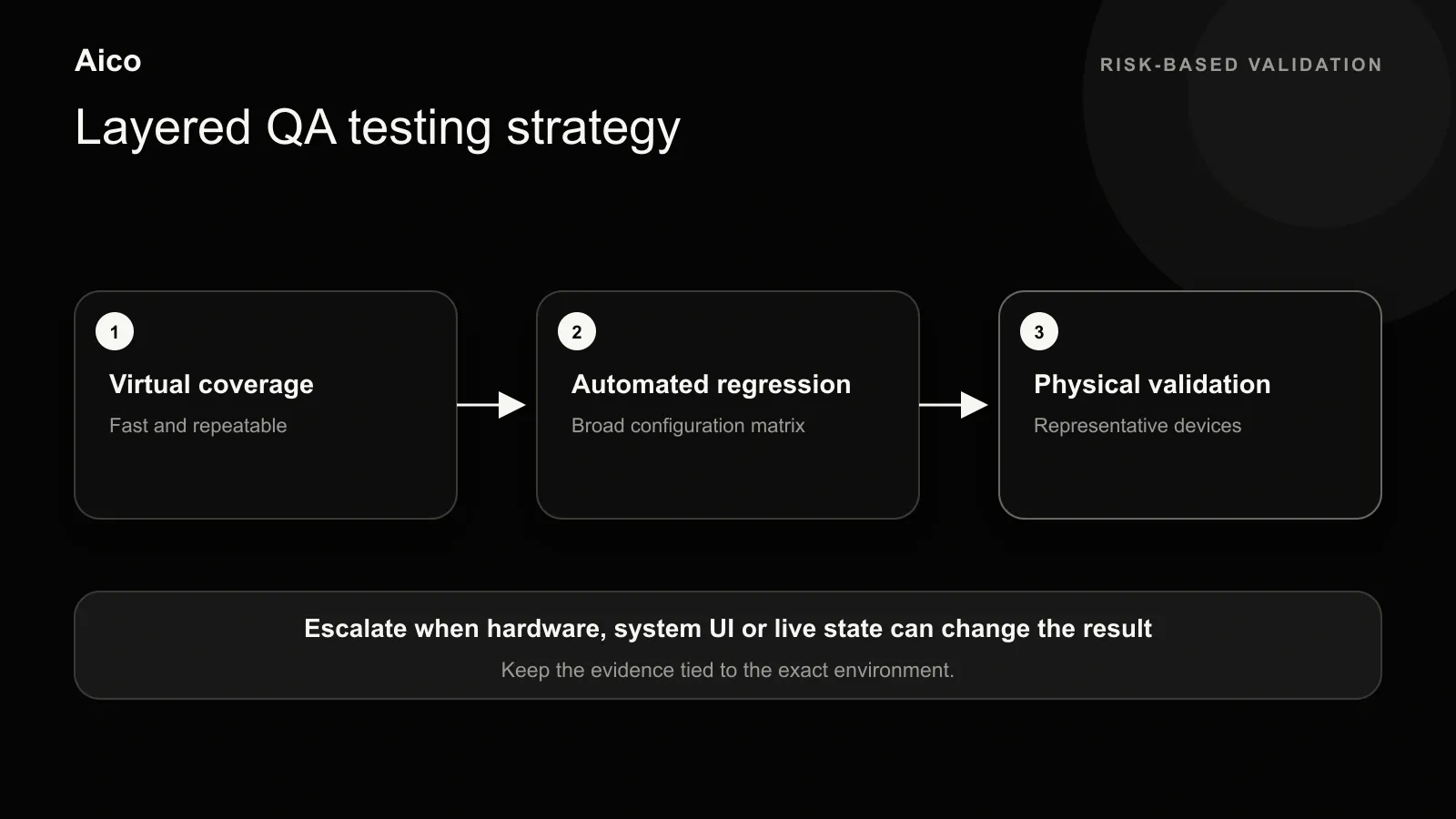
A layered CI approach balances quick feedback with meaningful confidence:
- Run unit and component tests on every code change.
- Run emulator or simulator UI regression tests on pull requests.
- Run selected physical-device tests for merged changes, nightly builds, or release candidates.
- Expand device compatibility testing for high-risk features, major OS updates, and incident-prone areas.
Android’s testing fundamentals support the use of physical and emulated devices for instrumented testing and emphasize testing across devices, languages, user flows, and error conditions.
Controlled app performance testing
Virtual tests can help reveal regressions in application behavior, startup flows, and rendering logic. They are useful for comparing changes under a stable environment, especially when the goal is to detect a relative regression.
However, a virtual device’s controlled setup should not be treated as proof of physical battery consumption, heat behavior, touch responsiveness, or carrier-network recovery. Those are separate real-world validation questions.
What Requires Real Device Testing
Real device testing is most valuable when the workflow depends on conditions that virtual tooling cannot fully reproduce or when a small variation could have major user impact.
Hardware, sensors, and peripherals
Validate feature-critical hardware paths on physical devices when they involve:
- Bluetooth pairing, reconnection, and accessory changes.
- NFC interactions.
- USB-connected workflows.
- Wired or wireless audio routing.
- Camera and microphone behavior.
- GPS and location behavior in actual use.
- Haptic feedback and device-specific input behavior.
- Biometric or hardware-backed authentication flows.
The Android advanced Emulator usage guide explicitly identifies several unsupported hardware functions. That makes physical validation mandatory for those functionality paths, not optional polish.
System UI, permissions, and interruptions
System-owned screens are frequent sources of real-world differences. Test physical devices for:
- First install, upgrade, and restored-app states.
- Permission grant, denial, revocation, and limited-access paths.
- Notification actions and deep links.
- Lock and unlock transitions.
- Keyboard appearance, dismissal, and input-method differences.
- App switching and background-to-foreground recovery.
- Orientation changes during a workflow.
- Connectivity loss, recovery, and offline states.
- Accessibility settings such as larger text, display scaling, or screen-reader use.
An incoming notification, an app switch, or a rotation can invalidate assumptions made only moments earlier. Android guidance also recognizes orientation and interruption states as meaningful UI testing conditions.
Accessibility and device compatibility testing
Accessibility testing should include automated checks, semantic inspections, and actual-device evaluation. W3C mobile-accessibility guidance applies established accessibility standards across mobile websites and applications. Automated and virtual checks remain useful, but contextual evaluation should include representative devices and assistive-technology workflows.
A useful physical device portfolio has three tiers:
| Tier | Purpose | Selection criteria |
|---|---|---|
| Release blockers | Must pass before shipping a high-impact change | High-use devices, current supported OS versions, critical journeys |
| Compatibility sentinels | Detect meaningful variation | Lower-memory devices, different Android vendors, alternate screen sizes, older supported OS |
| Investigative devices | Reproduce and explore specific issues | Newly released devices, beta OS versions, reported device models, specialized accessories |
Do not test only on premium phones. Lower-memory devices, smaller displays, older OS versions, and vendor-customized Android builds can expose issues that a flagship-only QA lab misses.
Real device testing for AI agents
The need for physical validation expands when the system under test is an interface-driven agent.
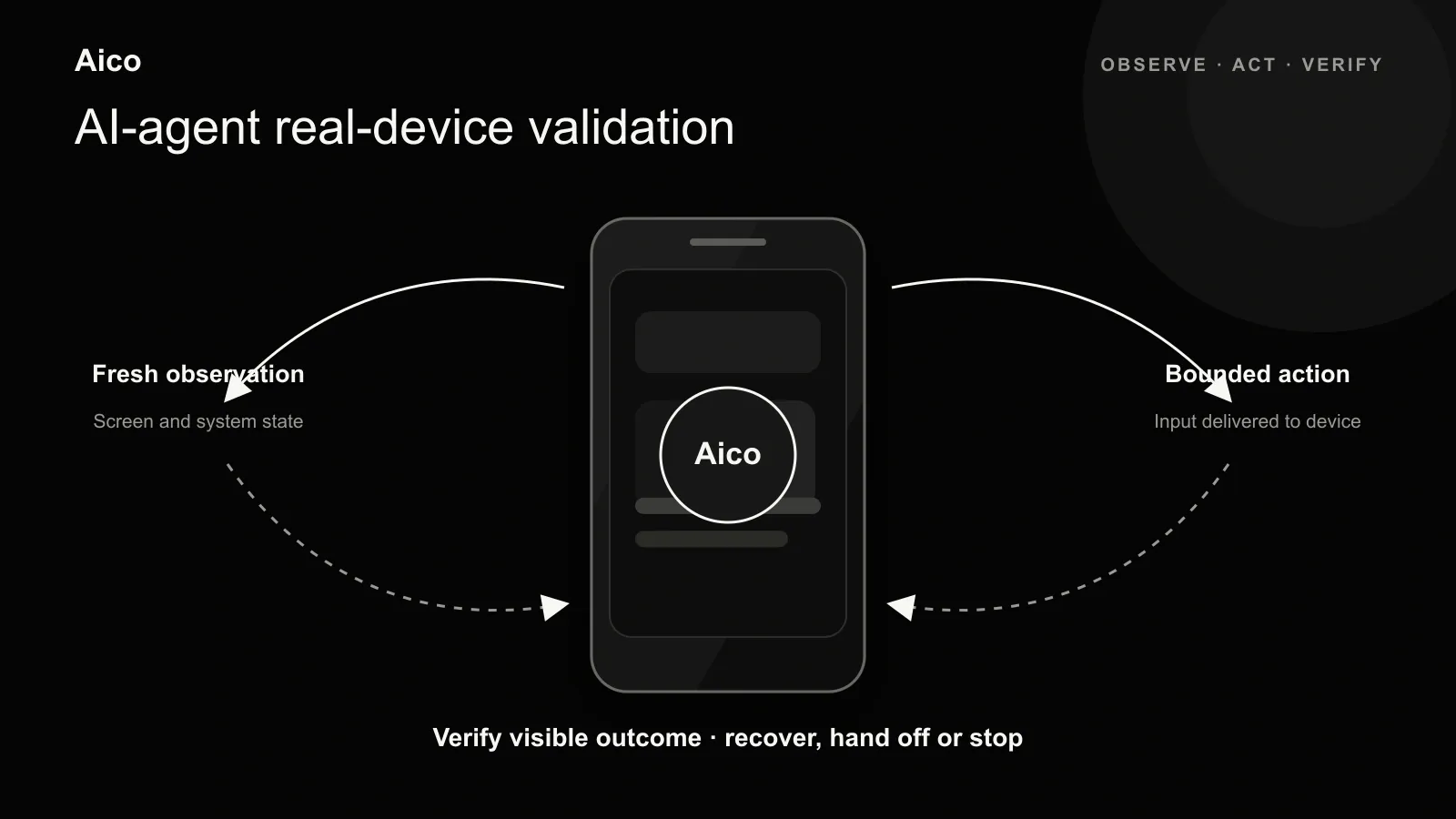
A conventional app test often asks whether an app responds correctly to defined inputs. A UI-driving agent must observe what is visible, choose an action, execute it, inspect the updated interface, and recover when reality differs from its expectation.
That perception-action loop can change because of:
- Screen size, density, scaling, and cutouts.
- Keyboard occlusion and alternate input methods.
- Animation, loading states, and delayed content.
- Permission dialogs, banners, and system notifications.
- Orientation changes during a task.
- App backgrounding or session expiry.
- Network interruption and retry screens.
- Accessibility settings that change layout or focus.
- Human interruption, cancellation, or redirection.
Aico Link is being developed as an open-source physical AI-agent platform for interaction through compatible phone, tablet, and computer interfaces. Its development and benchmark contexts can include physical devices, Android ADB targets or emulators, bridges, and deterministic fixtures. Those environments should be named precisely because a mock or emulator result is not evidence of behavior through a physical capture-and-input path. For the underlying perception-and-action loop, see How Multimodal Agents Turn Screenshots Into Actions. The separate Pixels vs DOM vs Accessibility Tree comparison explains how observation methods change what an agent can perceive.
Build a Risk-Based QA Testing Strategy
A strong QA testing strategy assigns environments based on risk, not habit. The companion guide to benchmarking mobile AI agents on real devices covers evidence collection and reproducibility in more depth.
A simple decision model is:
Validation priority = user exposure x impact of failure x likelihood of environment-specific failure x technical uniqueness
A workflow deserves earlier and broader real-device validation when it is highly visible, difficult to recover from, tied to system UI, or dependent on hardware and live state.
| Development phase | Primary environment | Add real-device testing when | Evidence to retain |
|---|---|---|---|
| Early implementation | Unit tests, mocks, emulator | Hardware or OS UI is involved | Build, logs, test fixtures |
| Feature development | Emulator plus one representative device | Keyboard, permissions, notifications, accessibility, or layout are involved | Screenshots, device model, OS, test outcome |
| Regression testing | Virtual device matrix | Affected models or high-risk journeys are known | Automated results, configuration versions |
| Release validation | Local and cloud physical devices | Release-critical journeys are present | Device matrix, issues, resolution evidence |
| Incident reproduction | Matching real device first | Report points to device behavior or system UI | Exact environment record and regression test |
| Post-release review | Monitoring plus targeted checks | New device or OS patterns appear | Updated device-priority list |
Document the environment, not just the result
A test case labeled "passed on Android" is not sufficiently reproducible. Record:
- Device model and manufacturer.
- OS version and build.
- App version or commit.
- Emulator or simulator image and version.
- Screen size, resolution, density, and orientation.
- Locale, time zone, and keyboard.
- Network type and state.
- Battery or charging state when relevant.
- Permissions and accessibility settings.
- Account, session, and app-data state.
- Connected accessories.
- Screenshots, logs, traces, and observed outcome.
For interface-driven agents, record observation timestamps, action timestamps, the visible screen before and after each action, and the exact method used to verify task completion.
A successful tool call is not the same as a verified user-visible result. An action can be accepted by an input layer while the intended screen state fails to appear, changes unexpectedly, or requires human attention.
Human control belongs in the test plan
When an AI agent works on a visible interface, interruption and handoff should be testable product behavior.
A conservative policy includes:
- Stop: The user can interrupt a running task.
- Redirect: The user can modify the goal or constraints.
- Handoff: The agent pauses for authentication, permissions, ambiguous states, or unsupported actions.
- Confirm: The workflow requests explicit confirmation before consequential actions.
- Verify: The agent obtains a fresh observation after a handoff or interruption before proceeding.
The documented Aico runtime includes human-handoff support for situations such as authentication, permissions, ambiguity, and unsupported interactions. That does not guarantee a correct outcome in every case, but it provides a practical principle for real-device AI-agent evaluation: test how the system pauses, how the user takes over, and whether the agent rechecks the current state afterward.
Practical Checklists and Common Questions
Use this checklist to keep mobile app testing and AI-agent evaluation grounded in the right evidence.
Emulator and simulator checklist
- Pin the virtual OS image, app build, locale, and test data.
- Test navigation, state transitions, layout, and localization.
- Cover supported screen sizes, densities, orientations, and OS versions.
- Run deterministic UI regression tests in CI.
- Simulate supported network conditions where useful.
- Preserve screenshots, logs, and failure traces.
- Use controlled fixtures for repeatable agent policy and UI-state tests.
- Label the result as emulator, simulator, virtual device, or mock fixture.
Real device checklist
- Validate high-impact user journeys on representative physical devices.
- Test critical hardware and peripheral paths.
- Validate notifications, lock states, permissions, keyboards, and app switching.
- Test real connectivity changes and offline recovery.
- Include accessibility settings and assistive-technology workflows.
- Test orientation changes before and during important tasks.
- Run sustained sessions where app performance testing, heat, or battery behavior is relevant.
- Record model, OS, network, power, accessory, and account state.
- Use matching hardware first when reproducing a reported device-specific incident.
AI-agent interaction checklist
- Test loading, stale, and changed screen states.
- Vary display scaling, font size, orientation, and keyboard visibility.
- Inject notifications, dialogs, app switches, and connectivity loss.
- Test stop, pause, redirect, cancellation, and resume behavior.
- Require a fresh observation after human handoff.
- Prefer reversible tasks for automated evaluation.
- Separate action acceptance from visible task completion.
- Name the exact testing environment in every benchmark or report.
Are emulators enough for mobile app testing?
No. Emulators are highly valuable for rapid iteration, automation, and broad configuration coverage. They are not sufficient proof for feature-critical hardware paths, system UI behavior, real connectivity recovery, accessibility workflows, device-specific incidents, or representative sustained-performance behavior.
What is the difference between an emulator and a simulator?
Terminology varies by platform. Android uses the term Android Emulator for its virtual device environment, while Apple uses Simulator in its development tooling. The important point is not the label alone. Teams should identify what the environment can model, what it cannot represent, and whether a physical device is needed for the risk being tested.
Should every test run on a real device?
No. Running every test on physical hardware would slow feedback loops and limit coverage. Use virtual environments for broad, fast, repeatable checks. Reserve physical validation for the conditions that can fail only, or most meaningfully, on actual devices.
Why do interface-driven AI agents need real device testing?
Agents that act through interfaces must respond to what is visible at runtime. Keyboard state, dialogs, orientation, screen scaling, notifications, animations, and interruptions can all alter what an agent sees and what action is safe or effective. Real-device testing evaluates those live conditions instead of assuming that a controlled virtual state will generalize.
The best conclusion in the real devices vs emulators debate is operational rather than ideological: test the environment that can fail. Use emulators to move quickly, use physical devices to validate reality, and document enough context that every important result can be reproduced.
For architecture, setup guidance, and implementation context, consult the Aico Link documentation. Developers who want to review or contribute to the project can explore and star Aico Link on GitHub. Reproducible bugs, compatibility findings, documentation gaps, and technical proposals are especially useful when they include the full test environment.
Join the Aico Discord community to discuss physical AI agents, real-device automation, and the engineering behind Aico. Engineers are active in the community and welcome technical questions.
Related posts
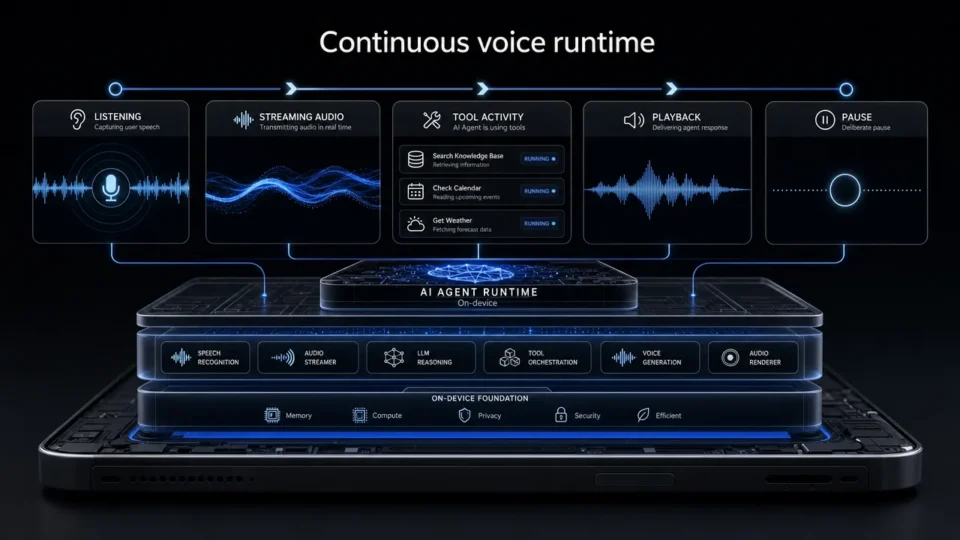
Aiden Adds Full-Duplex Voice and Interruptible Agent Tasks
Explore how Aiden’s full-duplex AI agent runtime supports streaming voice, tool interruption, and pause/resume task control states.
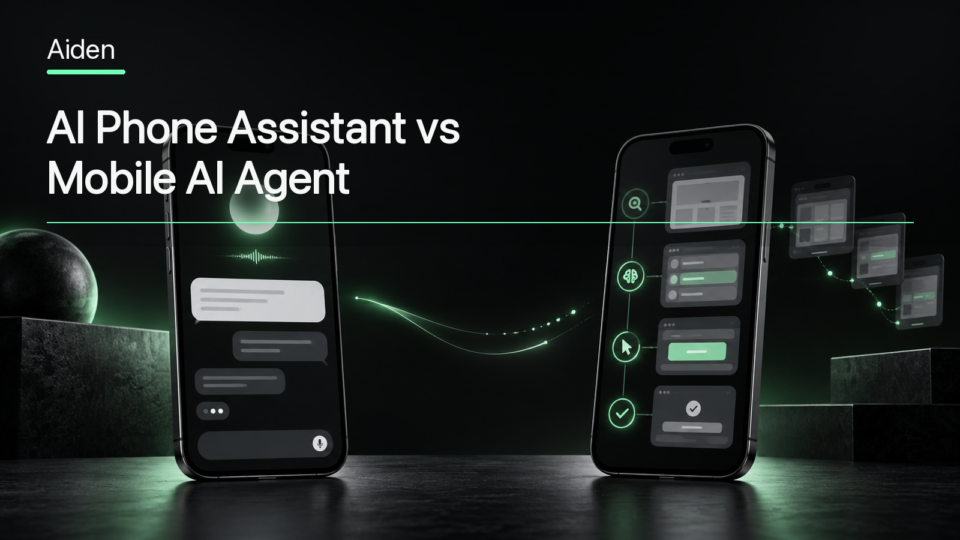
AI Phone Assistant vs Mobile AI Agent: What’s the Difference?
AI phone assistant vs mobile AI agent: compare planning, device control, human oversight, and multi-step task execution across real-device workflows.
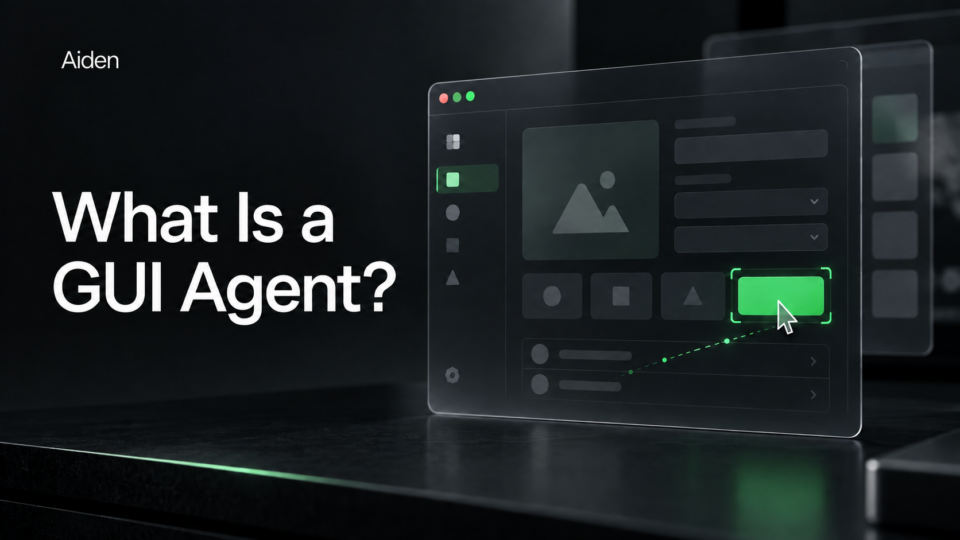
What Is a GUI Agent? How AI Reads and Acts on Interfaces.
See how a GUI agent observes interfaces, grounds targets, executes actions, and verifies outcomes, with testing methods and stopping rules.