How Multimodal Agents Turn Screenshots Into Actions
Multimodal agents turn screenshots into actions by repeatedly observing a screen, interpreting its visible state, choosing a bounded input, and verifying what changed after that input.
This is more than image recognition. A system may recognize a button in a screenshot, but useful computer-use behavior requires it to connect a user’s goal to the right control, act through an approved input path, and check whether the expected screen actually appeared. That closed loop is what separates a one-off visual prediction from practical automation.
How Multimodal Agents Use a Closed Observation-Action Loop
Multimodal agents turn screenshots into actions through a closed observation-action loop:
- Capture a current screenshot or display frame.
- Interpret visible text, icons, layout, selected controls, and warnings.
- Break the user’s goal into the next reasonable subgoal.
- Ground that subgoal to a visible element or screen region.
- Choose an action, such as tap, click, type, scroll, drag, wait, or ask for help.
- Execute the action through an allowed control channel.
- Capture a fresh observation and verify the expected result.
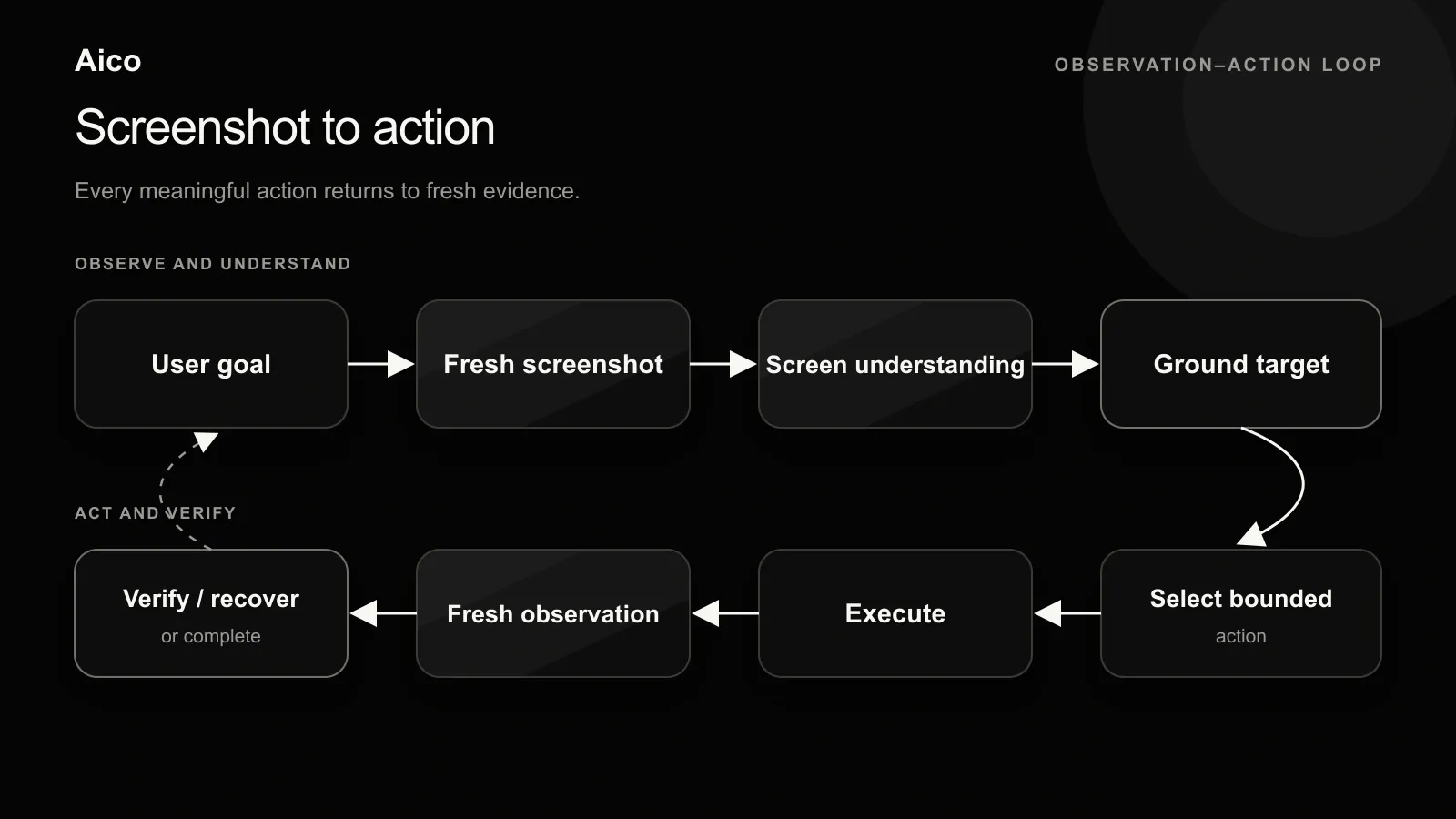
A screenshot-based agent should return to fresh evidence after each meaningful action.
A screenshot is only a partial view of a device state. It may not reveal content below the fold, hidden menus, application permissions, network conditions, or whether another process has changed the task in the background. That is why agents need to treat each screen as evidence, not as a complete or permanent truth.
For example, a user may ask an agent to find the name of the currently connected wireless network. The task can remain read-only:
- Open the relevant settings screen.
- Locate the network section.
- Read the visible network name.
- Report it to the user.
That differs from changing a network configuration. The visible steps can look similar, but the authority boundary is different.
A screenshot-based AI agent uses pixels as a primary observation source. It may also receive structured signals, such as OCR output, an accessibility tree, browser DOM data, or application metadata. The more reliable systems generally combine these sources instead of assuming pixels alone can answer every question.
How Multimodal Agents Understand Screens Before Acting
Screen understanding AI has to infer both what is visible and what that visibility means in context. A label reading "Save" might be a primary action button, a disabled control, part of a warning dialog, or a setting that applies to a different form than the agent intended to edit.
The most useful visual signals include:
- Text labels, headings, values, placeholders, and error messages.
- Icons, including settings, search, back, share, and overflow menus.
- Layout relationships, such as a toggle next to a setting name.
- Interaction state, including focused fields, selected tabs, disabled buttons, and loading indicators.
- Overlays, such as dialogs, permission prompts, notifications, and keyboards.
OCR, vision-language models, and UI structure
Optical character recognition, or OCR, extracts readable text and its approximate screen location. It is useful for locating a button labelled "Continue" or reading a visible status value. OCR can struggle with tiny labels, stylized fonts, low contrast, or text shown over a changing background.
A vision-language model can add context. Rather than matching a string alone, it can reason that a "gear" icon in the top-right corner is likely an entry point to settings, or that a highlighted tab indicates the currently active section.
Neither method is complete on its own:
| Signal source | What it helps an agent understand | Typical limitation |
|---|---|---|
| Screenshot pixels | Icons, visual layout, rendered state, canvas-based interfaces | Small targets and visual ambiguity can cause errors |
| OCR | Text labels, values, warnings, form-field hints | May miss or misread small, decorative, or low-contrast text |
| Accessibility tree | Roles, labels, hierarchy, element bounds | May be absent, incomplete, stale, or inconsistent |
| Browser DOM | Structured page elements, attributes, forms, events | Applies to browser content, not arbitrary device interfaces |
| API response | Structured records and explicit operation outcomes | Requires authorization and an available API |
The key engineering question is not whether an agent can see a control. It is whether it has enough evidence to decide that this is the correct control for the user’s current request.
Visual grounding connects language to an element
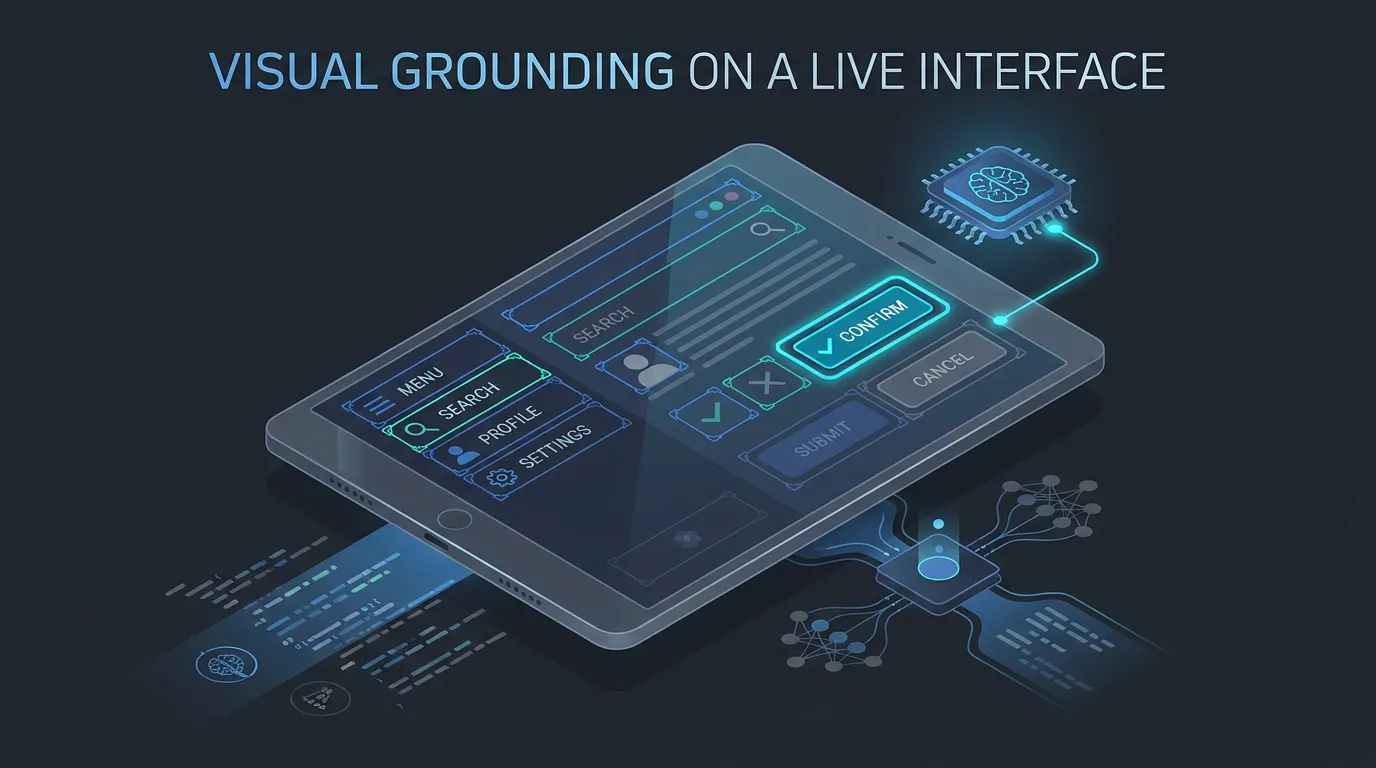
Visual grounding is the step that converts an instruction into a target location. If the instruction is "open Privacy settings," the system must distinguish the correct "Privacy" option from nearby labels, promotional content, or a similar item in another section.
Grounding may use:
- Exact OCR label matching.
- Relative descriptions, such as "the second item under Notifications."
- Icon recognition.
- Bounding boxes from a UI parser.
- Element labels and bounds from accessibility metadata.
- Coordinate prediction from a screenshot and task instruction.
The ScreenSpot benchmark focuses on this narrower task: identifying where an agent should act from a screenshot and natural-language instruction. It is valuable because a visually incorrect target can invalidate every later step. But correct grounding alone does not prove that an agent can safely complete a long workflow.
Action selection should stay small and reversible
Once an element is grounded, an agent chooses an action from its action space. Common actions include click, tap, type, press a key, scroll, swipe, drag, wait, go back, or request human assistance.
The best next action is often the smallest action that advances the task. If a search field is already visible, typing a known settings label may be more robust than manually scanning a long menu. If a modal dialog blocks the screen, the agent should determine whether it is relevant before continuing with an unrelated click.
This is where visual agent actions need clear boundaries. Repeatedly clicking because a screen appears unchanged can worsen an error, especially when timing, delayed loading, or hidden overlays are involved.
How Screenshot-Based Agents Compare With APIs and GUI Automation
GUI automation from screenshots is useful when an agent must work with rendered interfaces that do not provide a suitable API, stable browser DOM, or complete accessibility metadata. It is not a universal replacement for structured automation.
APIs remain the preferred path for authorized, structured operations because they provide explicit schemas, logs, and predictable responses. Browser automation can be highly effective when the task stays inside a supported web environment. Accessibility-driven automation can offer semantic control where metadata is available and trustworthy.
| Approach | Primary inputs | Strength | Main weakness | Suitable context |
|---|---|---|---|---|
| API-first automation | Structured requests and responses | Direct, observable, and often repeatable | Limited to available and authorized endpoints | Structured service operations |
| DOM-based browser automation | HTML, selectors, browser state | Precise control of known web elements | Does not cover arbitrary native or physical-device UI | Web testing and browser workflows |
| Accessibility-assisted automation | Semantic UI roles, labels, bounds | More meaningful than raw coordinates | Metadata quality varies across apps and platforms | Accessible desktop and web workflows |
| Traditional RPA | Scripts, selectors, image matches, rules | Deterministic in stable, predefined processes | Brittle under UI changes and exceptions | Repeatable internal workflows |
| Screenshot-first automation | Pixels, OCR, task instructions, action history | Can reach visible interfaces without app-specific integration | Sensitive to screen changes, timing, and grounding errors | UI-only, cross-application tasks |
| Hybrid automation | Visual, structured, and deterministic tools together | Uses the strongest signal for each step | Requires careful integration and state management | Production-oriented workflows |
A hybrid strategy is often the practical answer. An agent can use an API for a permitted data lookup, a browser DOM for a known webpage, and visual reasoning for an interface rendered in a remote desktop, canvas, or device screen. The system should not force screenshot reasoning onto steps where a more deterministic and authorized method exists.
This distinction also clarifies why computer vision task automation must include verification. A coordinate click at a target location may be delivered successfully by an input layer while still failing to produce the intended application state.
How Screenshot-Based Agents Reach Real Devices
Real-device interaction adds a physical layer to screenshot-conditioned control. The agent is no longer operating only inside a browser harness or a virtual machine. It must observe a real display path, issue input through a compatible channel, account for timing and hardware variation, and confirm what the device actually shows afterward.
Aico Link is being developed as an open-source physical AI-agent platform for this class of work. Its documented architecture is designed around visible-interface observation and controlled input paths in compatible configurations. The project describes display capture through an HDMI capture path and input through USB HID interfaces, rather than assuming app-specific APIs are always available.
A simplified physical path looks like this:
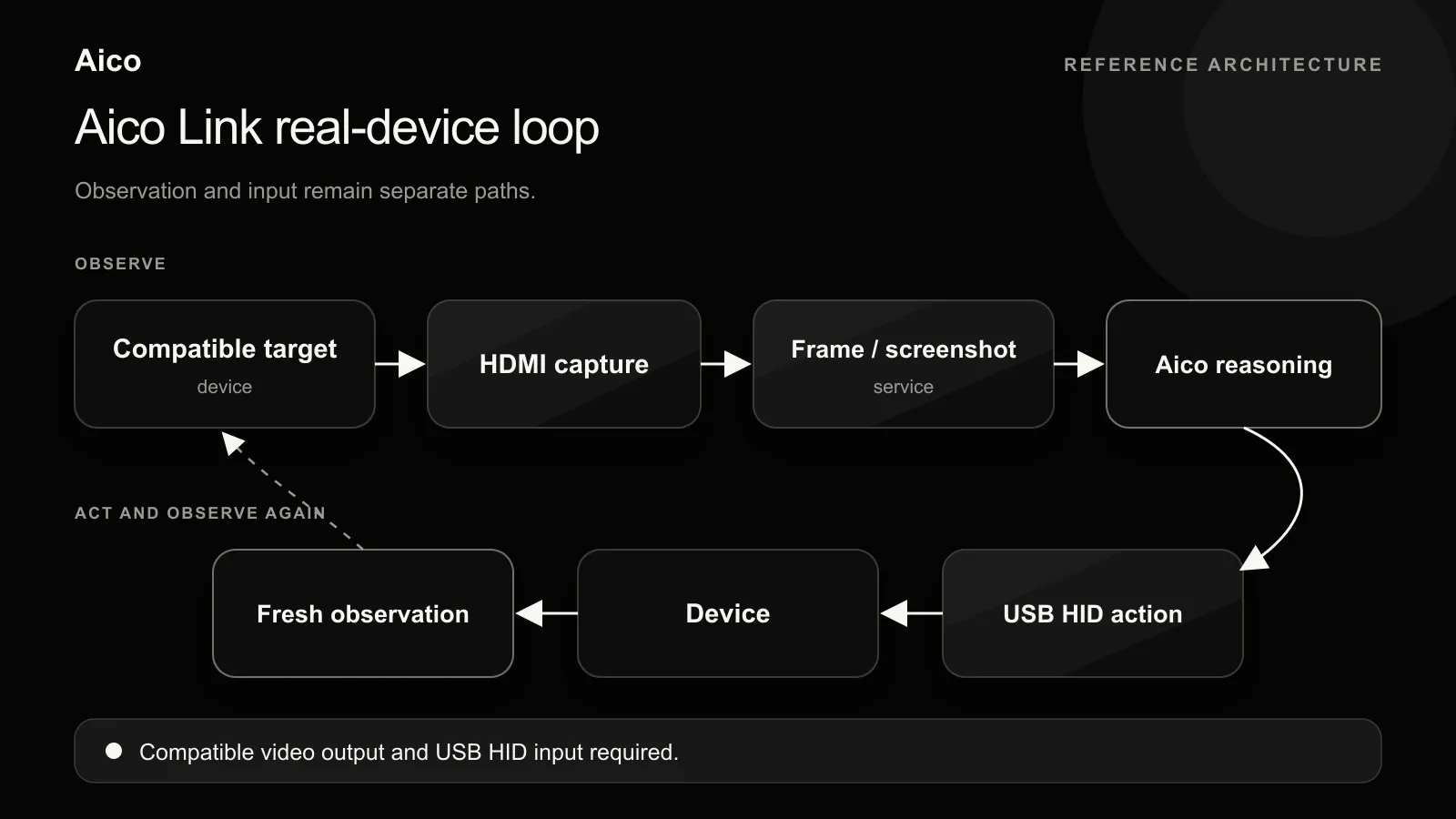
Aico Link keeps observation and input on separate paths. Compatible video output and USB HID input are required.
The phrase "real device" should not be treated as a guarantee of universal compatibility. Different phones, computers, operating systems, adapters, display modes, protected content rules, and HID behaviors can affect whether an observation or input path works as intended.
The project documentation also makes an important engineering distinction: a tool reporting that it sent an input does not prove the application reached the desired state. A real-device agent needs post-action observation.
Why fresh screenshots matter
Consider a simple action: selecting a settings menu item.
A successful input transport event might mean only that the click or tap was sent. It does not establish that:
- The correct window was active.
- A pop-up did not intercept the action.
- The target was not moved by a layout change.
- The app did not stall while loading.
- The expected settings page actually opened.
Fresh observation allows the agent to check visible evidence. It can look for the new page title, selected navigation item, changed value, or another expected state marker before proceeding.
For developers, environment labeling matters just as much. A result from a physical display and HID path is not the same as a result from an emulator, Android Debug Bridge route, virtual machine, desktop bridge, or deterministic mock fixture. Each is useful for testing, but each represents different constraints.
For technical details and current project context, developers can consult the Aico Link documentation and the Aico Link open-source repository.
How Human Control Improves Reliability
Long workflows compound uncertainty. A small grounding error changes the interface and can make the next screenshot harder to interpret. Layout shifts, overlays, slow loading, focus changes, authentication prompts, and interface text that conflicts with the user’s goal are all reasons to pause rather than continue blindly.
A reliable system uses bounded retries, alternative paths, or a human handoff. Human control belongs inside the loop:
| Control | Practical role |
|---|---|
| Bounded scope | Defines permitted apps, data, actions, and stopping conditions |
| Action-specific confirmation | Pauses before consequential or irreversible steps and names the target and consequence |
| Immediate interruption | Lets the user pause, cancel, redirect, or take over |
| Authentication handoff | Keeps credentials, biometrics, CAPTCHAs, and verification codes under user control |
| Fresh observation after handoff | Prevents the agent from resuming from an outdated screen |
| Clear failure reporting | Allows “unable to verify completion” instead of an unsupported success claim |
Interface content is evidence, not authorization. Text inside a page, message, or document should not be allowed to expand the user’s task or grant new permissions.
Confirmation should identify the action, target, data involved, and likely consequence. After a user takeover or authentication handoff, the agent should discard stale assumptions, capture the current screen again, and resume only from evidence it can verify.
Current OpenAI and Anthropic guidance also emphasizes constrained environments and human confirmation for consequential activity.
The dedicated human-in-the-loop guide covers approval, interruption, redirection, and recovery in more depth. For screenshot-based automation, the practical rule is simple: when evidence is insufficient or authority is unclear, pause and return control to the user.
How Screenshot-to-Action Systems Are Evaluated
End-to-end success can hide where a screenshot-to-action system failed. Evaluation should separate the layers that make the loop work:
| Evaluation area | What to test | Useful evidence |
|---|---|---|
| Perception | Can the system read text, recognize icons, and detect overlays? | Annotated screenshots and error cases |
| Grounding | Did it identify the requested interface target? | Correct region, element, or bounding box |
| Action delivery | Did the control path issue the intended input? | Tool or HID event trace |
| State verification | Did the expected visible state appear afterward? | Fresh screenshot with the expected page, value, or status |
| Recovery | Did it stop, retry within bounds, choose an alternative, or hand off appropriately? | Recovery trace and final reported state |
| Reproducibility | Can the result be repeated in the documented environment? | Versioned device setup, initial state, model, tools, and trace |
Run repeated trials from a controlled initial state and record the model and tool versions, screen size, permissions, action interface, and recovery path. Label results from physical devices, emulators, virtual machines, bridges, and mock fixtures separately; they expose different constraints and should not be treated as interchangeable evidence.
Benchmarks such as WebArena, OSWorld, and AndroidWorld can help structure tests, but their results remain tied to particular tasks, environments, evaluators, and action interfaces. A score from one setup does not predict performance on every device or live workflow.
Detailed benchmark design and post-action verification deserve separate treatment. Here, the key point is narrower: test perception, grounding, delivery, verification, recovery, and reproducibility separately so a successful demo is not mistaken for a reliability estimate.
Join the Aico Discord community to discuss physical AI agents, real-device automation, and the engineering behind Aico.
Explore and star Aico Link on GitHub. If you find a reproducible issue, a compatibility gap, a documentation problem, or have a technical proposal, open an Issue and help improve the physical AI-agent platform.
Related posts
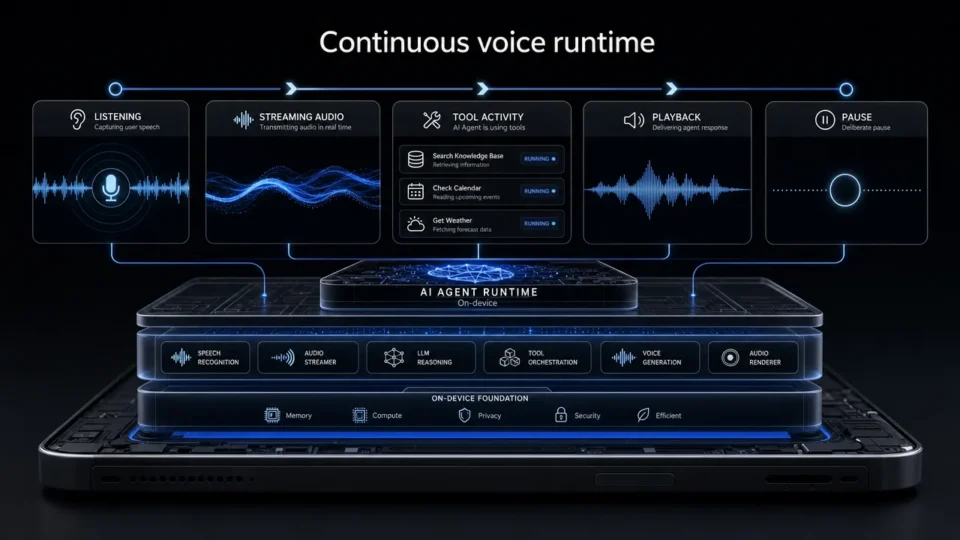
Aiden Adds Full-Duplex Voice and Interruptible Agent Tasks
Explore how Aiden’s full-duplex AI agent runtime supports streaming voice, tool interruption, and pause/resume task control states.
AI Phone Assistant vs Mobile AI Agent: What’s the Difference?
AI phone assistant vs mobile AI agent: compare planning, device control, human oversight, and multi-step task execution across real-device workflows.
What Is a GUI Agent? How AI Reads and Acts on Interfaces.
See how a GUI agent observes interfaces, grounds targets, executes actions, and verifies outcomes, with testing methods and stopping rules.