Pixels vs DOM vs Accessibility Tree
Graphical interfaces can expose three different representations to AI agents and assistive technologies: rendered pixels, the Document Object Model (DOM), and the browser or operating system accessibility tree. The DOM preserves authoring structure. The accessibility tree distills supported controls into roles, names, states, values, and bounds. Pixels preserve what is visibly rendered when a compatible capture or screenshot path is available.
No single representation is always best. DOM access is precise but limited to web content. Accessibility trees provide useful semantics but depend on implementation quality, permissions, and platform support. Pixel-based observation works across many custom-rendered and native interfaces, but it requires visual grounding, coordinate mapping, and post-action verification. For engineers building agents—and developers improving screen reader accessibility—the practical question is which representation offers enough information and control for the environment at hand.
How browser engines and operating systems construct the accessibility tree alongside pixels and the DOM
Browser engines do not hand raw HTML markup directly to assistive technologies, nor do they force screen readers to parse rasterized screen bitmaps. Instead, modern rendering engines—Blink in Chromium, WebKit in Safari, and Gecko in Firefox—execute a parallel pipeline that transforms source bytes into both a visual framebuffer and a structured accessibility tree, as documented in the MDN Accessibility Tree Glossary.
- HTML Parsing to DOM Tree: The engine consumes raw HTML bytes and constructs the DOM tree, which serves as the author-facing hierarchy of element nodes, text nodes, attributes, and shadow roots.
- CSSOM and Layout Tree Construction: The parser converts CSS stylesheets into the CSS Object Model (CSSOM) and merges it with the DOM to compute the Layout Tree (in Blink) or Render Tree (in WebKit). Elements styled with
display: noneare omitted from the layout tree because they occupy zero geometric space. - Painting and GPU Compositing to Pixels: The layout tree feeds into the paint and GPU compositing pipeline, rasterizing vector boxes, typography,
<canvas>buffers, and shaders into a bitmap of rendered pixels delivered to the display server. - Derivation of the Accessibility Tree: Simultaneously, the browser synthesizes an internal accessibility tree (
AXTree) by combining semantic data from the DOM tree with computed visibility, bounding-box coordinates, and focusability from the layout tree, a process detailed in Chromium’s Accessibility Overview.
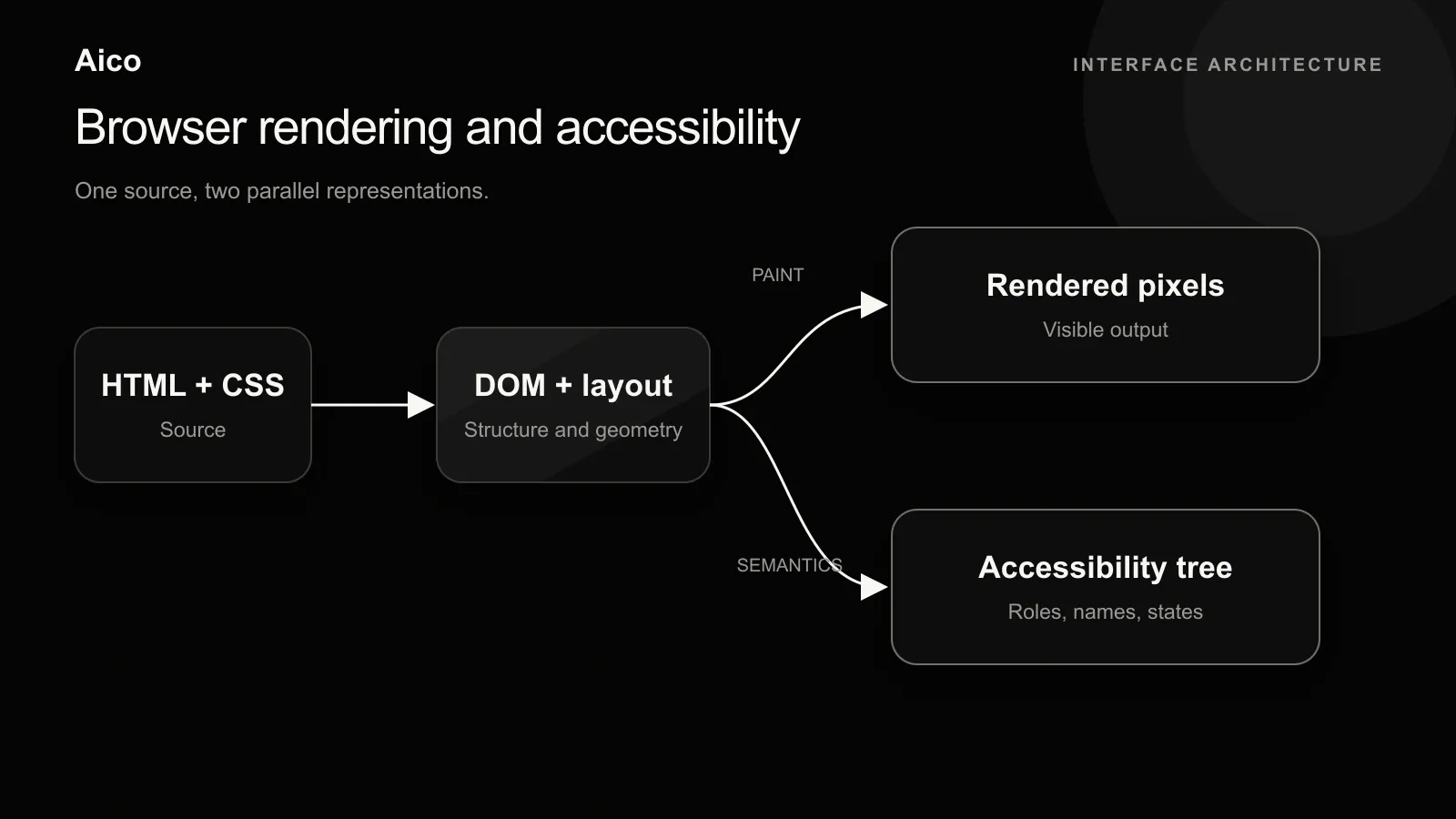
Browser rendering produces both visible pixels and a separate semantic accessibility structure.
Browser engine internals: Blink, WebKit, and Gecko
Maintaining a semantic accessibility structure alongside a changing DOM carries CPU and memory costs, so each browser engine uses dedicated caches and serialization layers:
- Blink (Chromium, Chrome, Edge): Blink manages its
AXObjecthierarchy throughAXObjectCacheImpl.AXNodeObjectwraps DOM nodes, whileAXLayoutObjectbinds nodes to layout geometry. To limit cross-process work, Chromium can defer full renderer accessibility until it detects assistive technology or receives the--force-renderer-accessibilityflag, as explained in the Chromium Accessibility Technical Documentation. When active, batchedAXTreeUpdatemessages are sent over IPC toBrowserAccessibilityManager. - WebKit (Safari and iOS browsers): WebKit uses an
AccessibilityObjectCacheandAccessibilityRenderObjectnodes to bind DOM semantics to WebCore’sRenderObjecttree, as shown in the WebKit AccessibilityRenderObject implementation. - Gecko (Firefox): Gecko builds a separate hierarchy rooted in
DocAccessible, documented in the Firefox Source Docs for Accessibility. In multiprocess Firefox,RemoteAccessibleproxies mirror that semantic hierarchy in the parent process.
W3C standards: Core-AAM, HTML-AAM, and AccName 1.2
To ensure consistent screen reader accessibility across operating systems, the W3C defines normative mapping specifications that govern how accessible web content is computed:
- Core-AAM and HTML-AAM: The W3C Core Accessibility API Mappings (Core-AAM 1.2) and HTML Accessibility API Mappings (HTML-AAM) act as the translation contract between web markup and native OS accessibility APIs. They dictate how an HTML element or WAI-ARIA role (
role="button",role="combobox"), state (aria-checked,aria-expanded), or property (aria-labelledby) maps into platform-native structures. - Accessible Name and Description Computation (AccName 1.2): Every interactive node in the accessibility tree requires an accessible name so a human or AI agent understands its function. The W3C AccName 1.2 specification enforces a strict precedence cascade when calculating a node’s
Name:aria-labelledby(Highest Precedence): Follows ID references to concatenate text from referencing elements, even if those elements are visually hidden—unless a nested child span usesaria-hidden="true", a subtle failure mode demonstrated in Google I/O’s session on debugging accessibility with Chrome DevTools.aria-label: An explicit string attribute directly on the element, overriding native labels and inner text.- Native Host-Language Labeling: Standard HTML mechanisms such as
<label for="id">paired with an<input>,<img alt="...">, or<fieldset>with<legend>. - Name from Content: For roles that support naming from descendant text (such as
<button>Submit Order</button>or<a href="...">Read More</a>), the engine concatenates child text nodes and CSS::beforeand::afterpseudo-element strings. - Fallback Tooltip or Placeholder: The
titleattribute orplaceholdertext, used only when all higher-priority sources are absent.
Native OS accessibility APIs and sandboxing walls
Once a browser engine or native UI toolkit (SwiftUI, Jetpack Compose, WinUI, GTK, Qt) builds its internal semantic hierarchy, it exposes those objects through the host operating system’s native accessibility interface:
| Operating System | Native Accessibility API | Core Object | Interface | Action & Pattern Mechanism | Security & Sandboxing Boundary |
|---|---|---|---|---|
| Windows | Microsoft UI Automation (UIA) & IAccessible2 | IUIAutomationElement (Raw, Control, & Content views) |
UI Automation Control Patterns (InvokePattern, ValuePattern, TogglePattern) |
UIPI blocks Medium integrity processes from automating High (Admin) windows without signed uiAccess="true" manifests |
| macOS | AppKit NSAccessibility / HIServices | AXUIElement (AXWindow, AXButton, AXWebArea) |
Attribute queries & action execution (AXPress, AXIncrement, AXShowMenu) |
Requires explicit user approval in System Settings under Privacy & Security → Accessibility (TCC) |
| Linux | AT-SPI2 (Assistive Technology Service Provider Interface) | D-Bus Objects on dedicated accessibility bus |
IPC round-trips via Accessible, Component, and Action (DoAction) interfaces |
Per-node D-Bus queries can add IPC overhead; some applications require accessibility to be enabled explicitly |
| Android | Android Accessibility Framework | AccessibilityNodeInfo & AccessibilityNodeProvider | performAction() (ACTION_CLICK, ACTION_SET_TEXT, ACTION_SCROLL_FORWARD) |
Access requires an enabled accessibility service; platform policy and protected interfaces can restrict automation use cases |
| iOS / iPadOS | UIKit UIAccessibility | UIAccessibilityElement (accessibilityLabel, accessibilityTraits, accessibilityFrame) |
accessibilityActivate(), adjustable traits, and custom actions |
Strict user-space app sandboxing blocks any third-party app from reading another app’s UIAccessibility hierarchy |
OS security boundaries determine what software-only agents can observe. On iOS, third-party applications generally cannot inspect another app’s UIAccessibility hierarchy; system accessibility services such as VoiceOver operate with different privileges.
Why DOM vs accessibility tree architecture determines semantic clarity
In a direct DOM vs accessibility tree evaluation, the defining difference is authoring mechanics versus user-facing semantics.
Modern frontend frameworks (React, Next.js, Vue, Angular) and utility-first CSS systems often treat the DOM as a layout and state-management scaffold. An interactive card may nest its controls inside multiple <div> and <span> containers, surrounded by scripts, inline SVG paths, tracking elements, and utility class strings. Those layout wrappers do not necessarily convey actionable meaning to a person relying on a screen reader or an AI agent deciding which control to activate.
When synthesizing the accessibility tree, the browser engine aggressively prunes and flattens the DOM, as illustrated in Pope Tech’s guide to Chrome’s accessibility tree:
- Pure Styling Wrappers: Non-semantic
<div>and<span>tags without interactive bindings or ARIA roles are marked asignoredor collapsed intogenericcontainers. - Explicitly Hidden Nodes: Elements styled with
display: none,visibility: hidden, oraria-hidden="true"are stripped from the accessibility tree even though they remain present in the DOM. - Presentational Overrides: Elements assigned
role="presentation"orrole="none"lose their own semantic role while still exposing their descendant content. - Shadow DOM Flattening: While open and closed Shadow DOM boundaries isolate markup from standard
document.querySelector()calls, the accessibility engine traverses shadow roots to project all interactive controls into one unified tree.
Every node that survives this pruning is distilled into four core properties:
- Role: What the control is (
button,checkbox,heading,textbox,combobox,link). - Name: The computed accessible label via AccName 1.2 (
"Continue","Search flights","Window Seat"). - State / Property: Current dynamic condition (
checked=true,expanded=false,disabled=true,focused=true). - Value / Description: Current input value or secondary context supplied via
aria-describedby.
Code-to-tree comparison: Div soup vs semantic HTML
To observe how semantic HTML accessibility shapes the resulting web accessibility structure, compare an airline seat-selection widget written first with non-semantic styling wrappers and second with native HTML controls—an architectural contrast explored in How AI Agents See Your Website.
Case A: Inaccessible "div soup" markup (anti-pattern)
<!-- Anti-pattern: Styling wrappers, custom JS click handlers, no semantic roles or states -->
<div class="seat-card-wrapper p-6 bg-white shadow-md">
  <div class="header-row flex justify-between">
    <span class="title-lg font-bold">Choose Your Seat</span>
    <div class="icon-btn" onclick="openSearchModal()">
      <svg viewBox="0 0 24 24"><path d="M15.5 14h-.79l-.28-.27..."/></svg>
    </div>
  </div>
  <div class="toggle-wrapper mt-4">
    <div class="toggle-box active-blue" onclick="toggleWindowSeat()">Window Seat</div>
  </div>
  <div class="footer-action mt-6">
    <div class="btn-primary blue-rect" onclick="submitSeat()">Continue</div>
  </div>
</div>
When Blink computes the accessibility tree for Case A, the output in Chrome DevTools exposes critical blind spots:
RootWebArea "Airline Checkout"
  ├─ generic (ignored styling divs)
  ├─ StaticText "Choose Your Seat"
  ├─ generic (unnamed clickable div containing SVG — invisible or nameless to screen readers)
  ├─ StaticText "Window Seat" (no checkbox role, no checked/unchecked state exposed)
  └─ StaticText "Continue" (no button role, focusable=false, keyboard Enter/Space dead)
In Case A, both a screen reader user and an accessibility-tree agent are operating half-blind. The search icon has no role and computes an empty accessible name (""). The "Window Seat" toggle indicates selection purely via a CSS class (active-blue), so its checked state is missing from the accessibility tree. The "Continue" control registers merely as StaticText; it lacks keyboard focusability (tabindex) and cannot be triggered via standard keyboard activation. Furthermore, simply adding role="button" to <div class="btn-primary"> without adding keyboard event listeners violates the W3C ARIA Authoring Practices Guide rule that "a role is a promise"—it labels the node as a button in the tree, but leaves Enter and Space keystrokes non-functional, as documented in the MDN ARIA button role reference.
Case B: Semantic HTML and minimal ARIA (best practice)
<!-- Best Practice: Native HTML controls, explicit accessible names, state in markup -->
<section aria-labelledby="seat-heading" class="p-6 bg-white shadow-md">
  <header class="flex justify-between">
    <h2 id="seat-heading" class="font-bold">Choose Your Seat</h2>
    <button type="button" aria-label="Search flights" onclick="openSearchModal()">
      <svg aria-hidden="true" viewBox="0 0 24 24"><path d="M15.5 14h-.79..."/></svg>
    </button>
  </header>
  <div class="mt-4">
    <label>
      <input type="checkbox" checked onchange="toggleWindowSeat()" />
      Window Seat
    </label>
  </div>
  <footer class="mt-6">
    <button type="button" onclick="submitSeat()">Continue</button>
  </footer>
</section>
When rendered by Blink or serialized via Playwright ARIA Snapshots, Case B produces an unambiguous specification:
- region "Choose Your Seat":
  - heading "Choose Your Seat" [level=2]
  - button "Search flights" [focusable=true]
  - checkbox "Window Seat" [checked=true, focusable=true]
  - button "Continue" [focusable=true]
Every layout <div> and decorative <svg aria-hidden="true"> disappears. What remains is a compact tree of interactive roles, verified accessible names, focusable properties, and explicit boolean states.
Pixels vs DOM vs accessibility tree: practical trade-offs
For an AI agent, the differences between pixels, the DOM, and the accessibility tree affect what the agent can observe, how it identifies a target, and which permissions or integration points it needs.
| Architectural dimension | Raw DOM (HTML / selectors) | Accessibility tree (AXTree / OS APIs) | Rendered pixels (screenshots / video capture) |
|---|---|---|---|
| Primary representation | Web document nodes, attributes, text, and selectors | Pruned semantic roles, names, states, values, and bounds | The visual frame shown by the interface |
| Typical coverage | Browser pages and WebViews where DOM access is available | Web and native interfaces that expose usable accessibility data and permit access | Interfaces available through a compatible screenshot, display, or capture path |
| Grounding method | Node handle or CSS/XPath selector | Semantic reference or platform accessibility action | Visual coordinates or detected regions |
| Main strength | Precise element targeting and programmatic state access | Compact semantics for supported controls | Preserves visual appearance, spatial layout, and custom-rendered content |
| Main limitation | Does not represent native apps and may include irrelevant or hidden markup | Quality and coverage depend on semantics, permissions, and platform boundaries | Requires visual interpretation; text or state can be ambiguous, occluded, or off-screen |
| Custom canvas and rendered views | Usually exposes only the container element | May expose little or no internal structure | Can show the rendered content, provided capture is available |
| Setup requirements | Browser instrumentation, an extension, or a debugging interface | Accessibility permissions, services, or platform-specific configuration | Screenshot access or compatible video capture, plus a separate action path |
| Context cost | Varies with document size and filtering | Often compact after pruning, but can still be large | Depends on image resolution, cropping, and model encoding |
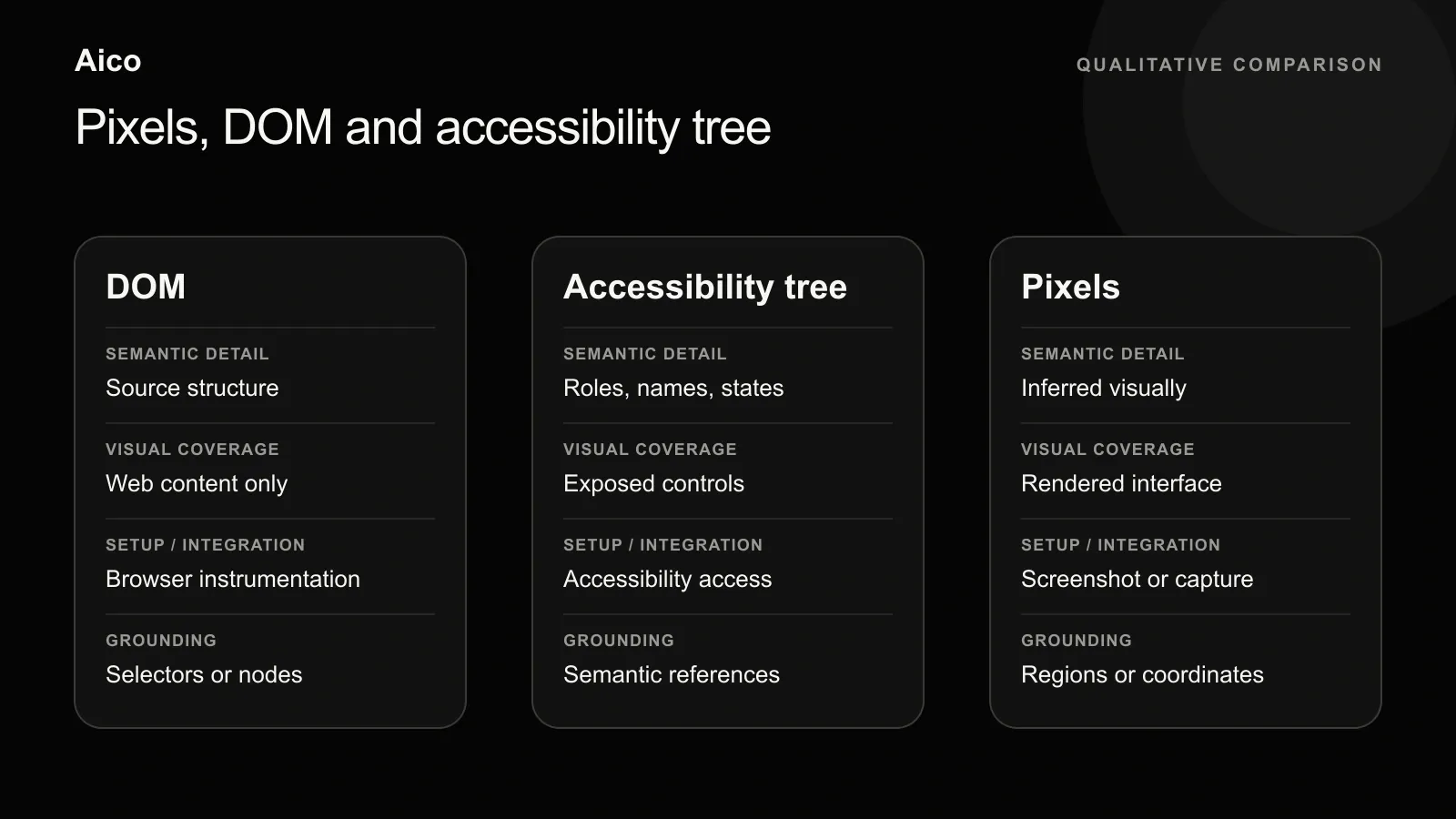
Each representation offers a different balance of semantics, coverage, integration effort, and grounding.
Why raw DOM serialization breaks outside narrow web benchmarks
Early web-only evaluation suites such as the WebArena benchmark demonstrated how language models could navigate structured HTML. However, raw DOM serialization fails rapidly on production interfaces:
- Large, noisy payloads: A complex storefront or SaaS dashboard can serialize into a substantial amount of nested layout markup, utility classes, and inline SVG data unless the representation is filtered.
- Zero Visual Occlusion Awareness: The DOM cannot tell an agent whether a target button is visually covered by a sticky cookie banner, a promotional modal, or a CSS
z-indexcollision. - Hidden content: A raw DOM representation can include text that is not visible or currently actionable. Filtering by computed visibility and treating interface content as untrusted input are important safeguards; an accessibility snapshot may remove some hidden nodes, but it is not a complete security boundary.
Where the accessibility tree fails in production desktop and mobile workflows
Browser automation harnesses such as Microsoft’s Playwright MCP server and the Chrome DevTools MCP server rely on accessibility tree snapshots to provide compact element references to LLMs. Google’s Chrome team has also introduced an agent-ready website toolkit alongside Lighthouse agentic browsing audits to help web developers repair broken accessibility semantics so browser agents can click controls by ID.
Relying exclusively on the accessibility tree can introduce several limitations in real-world desktop and mobile workflows:
- Missing labels and broken ARIA: An accessibility tree is only as useful as the interface semantics it receives. Gitea Issue #40107, for example, documented comboboxes that exposed an empty accessible name through Chrome DevTools Protocol because the required naming relationship was missing.
- Limited structure for
<canvas>, WebGL, and custom renderers: Spreadsheet canvases, design boards, maps, games, CAD viewports, and custom-rendered views may appear as one container with little or no useful child structure. - Initialization and configuration differences: Some browsers and desktop applications do not fully initialize or expose accessibility data until an assistive technology is active or accessibility support is enabled.
- IPC and representation overhead: Desktop accessibility APIs can require many cross-process queries. Filtering the tree to relevant controls and nearby context is often necessary for responsive agent loops.
- Mobile platform boundaries: iOS does not generally let one third-party app inspect another app’s accessibility hierarchy. Android exposes accessibility services, but enabling them, distributing automation use cases, and interacting with protected apps remain platform- and policy-dependent. Benchmarks such as AndroidWorld often use controlled environments that do not represent every production deployment.
Pixels and visual grounding: coverage and coordinate trade-offs
Rendered pixels preserve the visible output of an interface when a compatible capture or screenshot path is available. That can make visual observation useful for legacy desktop software, mobile apps, <canvas> charts, and other custom-rendered interfaces that expose little structure. It does not guarantee reliable interpretation or control: the agent still has to identify the target, map coordinates correctly, handle occlusion, and verify the result.
To act reliably on pixels, vision-language models (VLMs) and specialized grounding architectures such as UGround and Efficient GUI Agents address two mechanical requirements:
- Coordinate Space and DPI Scaling: Vision models predict coordinates in normalized grids (such as
0–1000) or scaled image dimensions. The agent runtime must map(x_model, y_model)accurately back to the display’s native resolution and device-pixel ratio (DPR). - Closed-Loop Verification: In heterogeneous evaluation suites like the OSWorld benchmark, pairing visual screenshot grounding with post-action visual verification allows agents to detect asynchronous layout shifts or unexpected modal popups and adjust their next action dynamically.
How Aico Link Uses Pixels for Real-Device Interaction
Aico Link—formerly referred to as the Aiden Agent hardware—is an open-source hardware platform for observing and controlling compatible devices at their display and input boundaries. Aico is the AI agent/runtime that runs on the platform. This is one implementation example, not evidence that pixels are always preferable to DOM or accessibility-tree access.
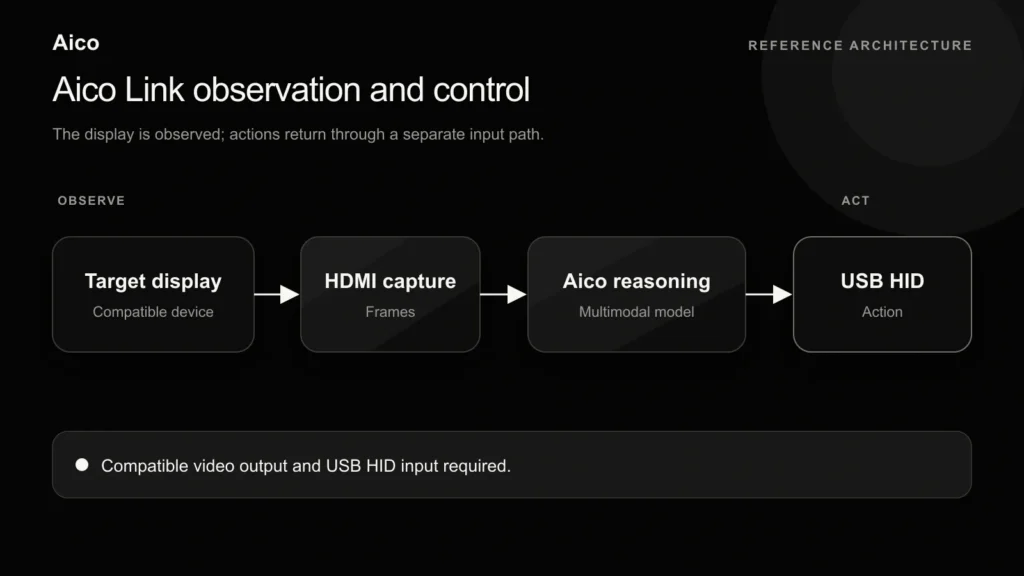
In the current development-board reference setup, Aico Link runs on a Luckfox Pico Zero based on the Rockchip RV1106. The display path uses HDMI capture through an HDMI-to-CSI bridge. Current documentation identifies RK628D as the primary bridge for the reference build, while TC358743 remains supported as a legacy capture path. The frame service detects the available bridge and exposes captured frames to the runtime.
Aico can send those frames to a configured multimodal model provider for interpretation, then return actions through composite USB HID interfaces: /dev/hidg0 for keyboard input, /dev/hidg1 for pointer or touch input, and /dev/hidg2 for Android extension keys or consumer-control functions. This observation-and-action split avoids exclusive dependence on a target app’s DOM or accessibility tree.
The setup is not universally compatible. The target device must provide a compatible video-output path and accept the required USB HID input. iOS use requires AssistiveTouch, and some devices, operating-system versions, gestures, protected interfaces, or optional features may require additional configuration or may not be supported. Pixel observation also retains the general limitations described above: visual ambiguity, occlusion, coordinate mapping, latency, and the need to verify state after an action.
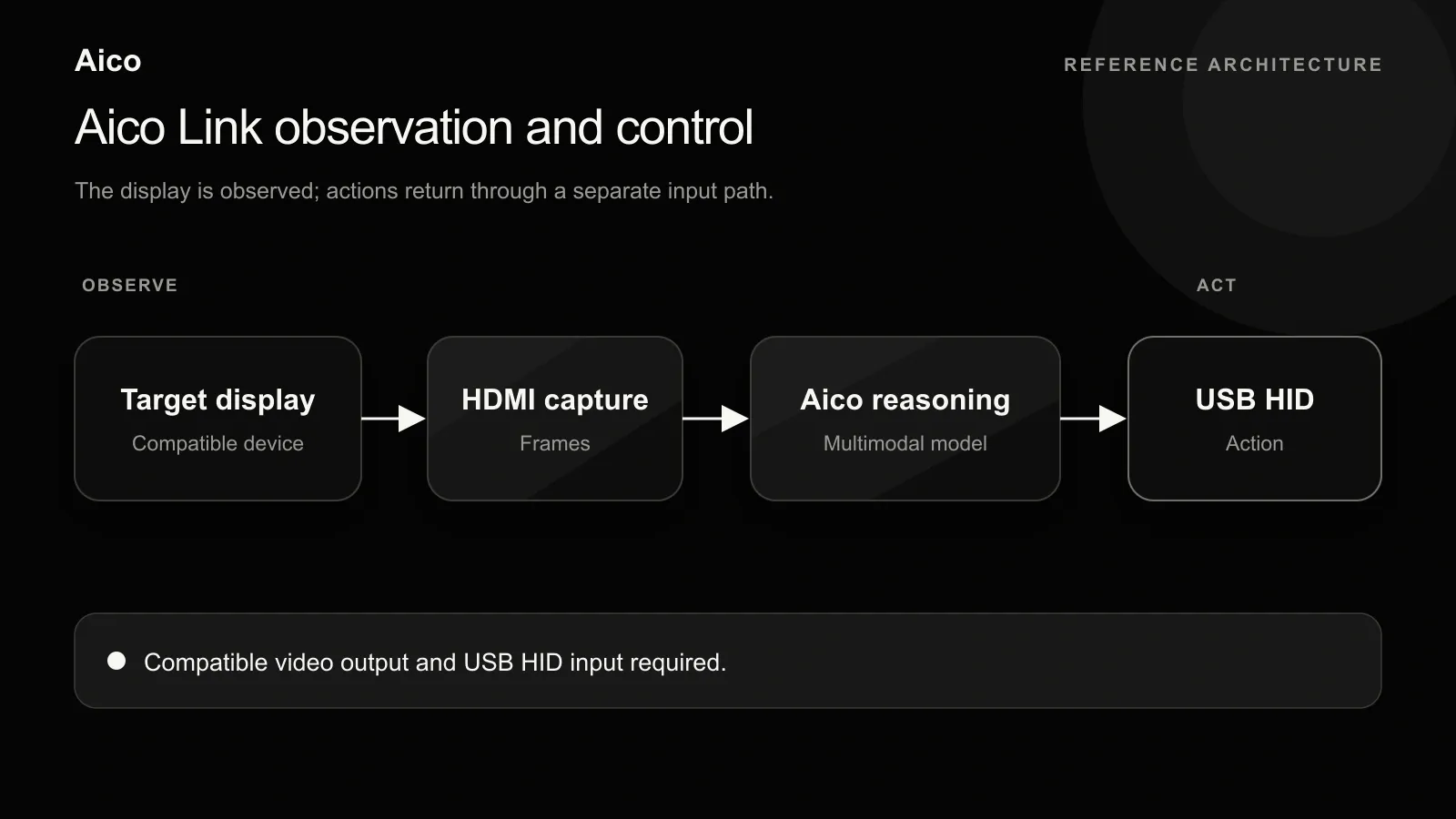
Aico Link separates screen observation from the USB HID action path; compatible video output and USB HID input are required.
Frequently asked questions about the accessibility tree, DOM, and pixels
What is the difference between the DOM and the accessibility tree?
The DOM (Document Object Model) is the complete in-memory hierarchy of HTML elements, styling wrappers, scripts, and attributes created by the browser’s parser for rendering and JavaScript manipulation. The accessibility tree is a pruned, semantic projection derived from both the DOM and the computed layout tree, stripping away non-semantic <div> wrappers and hidden nodes (display: none, aria-hidden="true") to expose only semantic roles, accessible names, states, and bounding boxes to assistive technologies and structure-based AI agents.
Why can’t mobile AI agents rely on the accessibility tree on iPhone?
On iOS, third-party applications generally cannot inspect another app’s UIAccessibility hierarchy. Apple’s system accessibility services operate with different privileges. An agent therefore needs another supported observation path—such as a platform integration, a controlled testing connection, or compatible external display capture—if it must work across apps.
Does the accessibility tree consume fewer LLM tokens than pixels?
A filtered accessibility tree is often compact because it can omit non-semantic layout nodes and preserve only relevant roles, names, states, and bounds. An unfiltered desktop tree can still be large, while the cost of an image depends on its resolution, cropping, and the model’s image encoding. Neither representation is always cheaper: the right comparison depends on the interface and how aggressively each input is filtered.
How can developers inspect the accessibility tree in Chrome?
Developers can inspect the computed accessibility tree in Chrome DevTools by opening the Elements panel, selecting the Accessibility sub-tab, and checking Enable full-page accessibility tree (as shown in Google Chrome Developers’ debugging walkthrough and Pope Tech’s Chrome accessibility tree tutorial), or by running Chromium’s automated ax_dump_tree inspection tool.
Join the Aico Discord to discuss physical AI agents, real-device automation, and the engineering behind Aico Link.
Explore and star Aico Link on GitHub. If you find a reproducible issue, compatibility gap, or have a technical proposal, open an issue in the repository.
Related posts
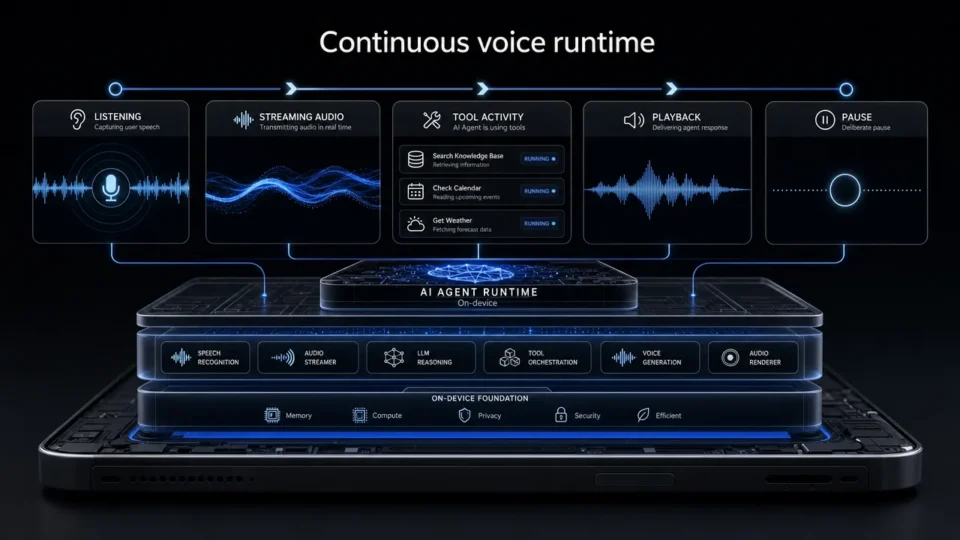
Aiden Adds Full-Duplex Voice and Interruptible Agent Tasks
Explore how Aiden’s full-duplex AI agent runtime supports streaming voice, tool interruption, and pause/resume task control states.
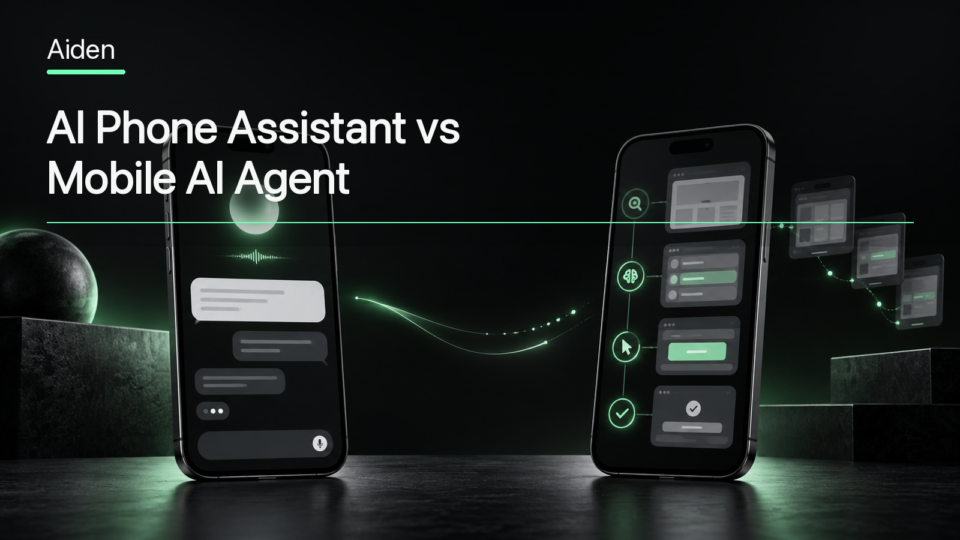
AI Phone Assistant vs Mobile AI Agent: What’s the Difference?
AI phone assistant vs mobile AI agent: compare planning, device control, human oversight, and multi-step task execution across real-device workflows.
What Is a GUI Agent? How AI Reads and Acts on Interfaces.
See how a GUI agent observes interfaces, grounds targets, executes actions, and verifies outcomes, with testing methods and stopping rules.